RTL8762x_RFTestTool
Test Environment
Before using the RTL8762x_RFTestTool, the device must be downloaded with the test images first and run in the [MP Mode]. Users can use the Download function of this tool to burn the general test images. Before burning, p0_3 must be grounded.
The steps are as below.
Select the correct 'IC Type'.
Switch to 'Download' mode.
Click the Detect button to detect the serial port.
Select the serial port number.
Click Download to start downloading.
When the message Task executed successfully appears, the download is successful. Then make sure p0_3 is disconnected and restart the device.
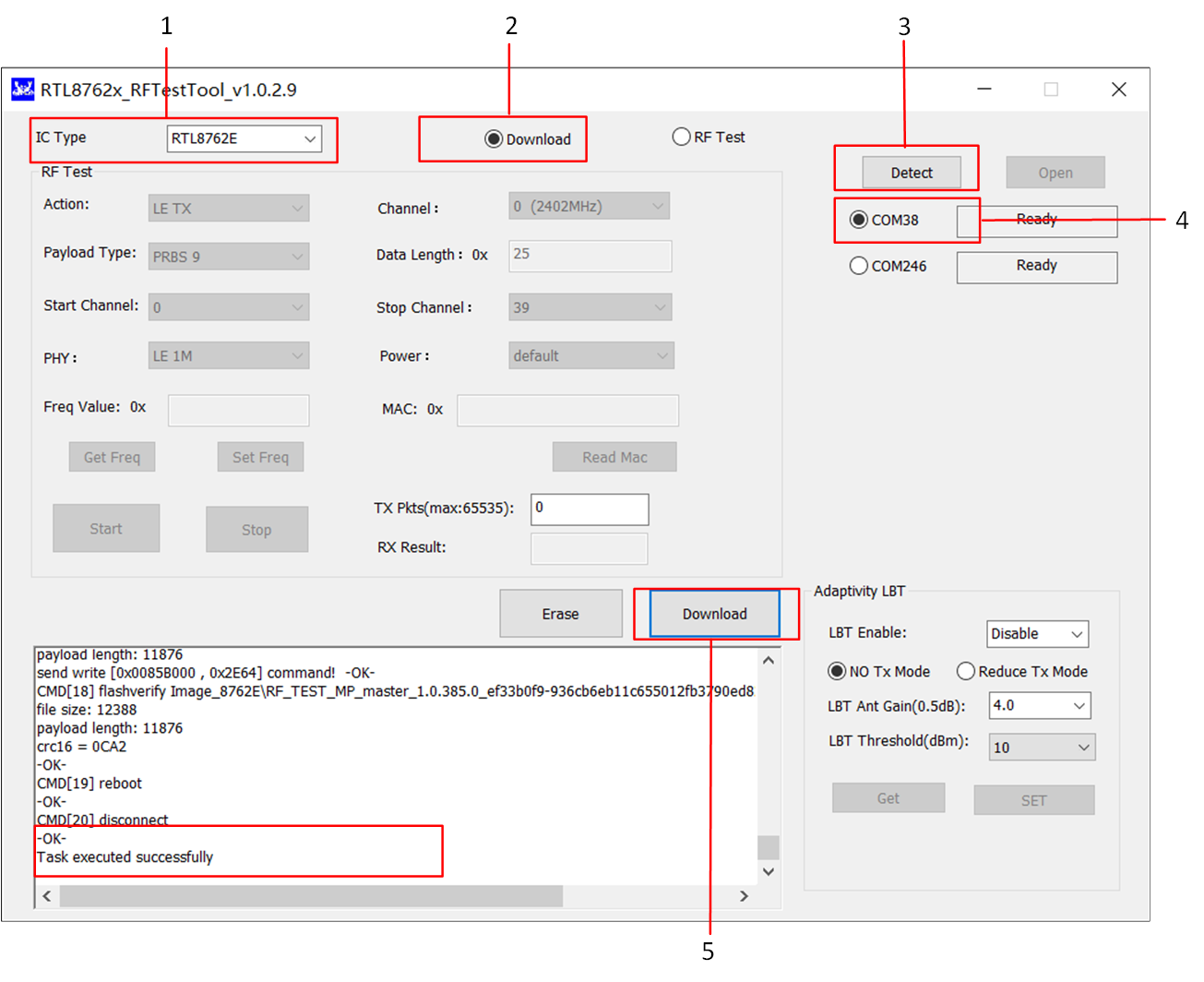
Download Test Images Steps
Note
When using this tool to download, the parameters of the Config file are configured as default values. If you need to change the parameter settings, please use MP Tool to generate the Config file and burn it.
Main Function
BLE RF performance test includes the following two test modes. RTL8762x_RFTestTool is used for Non-Signaling test.
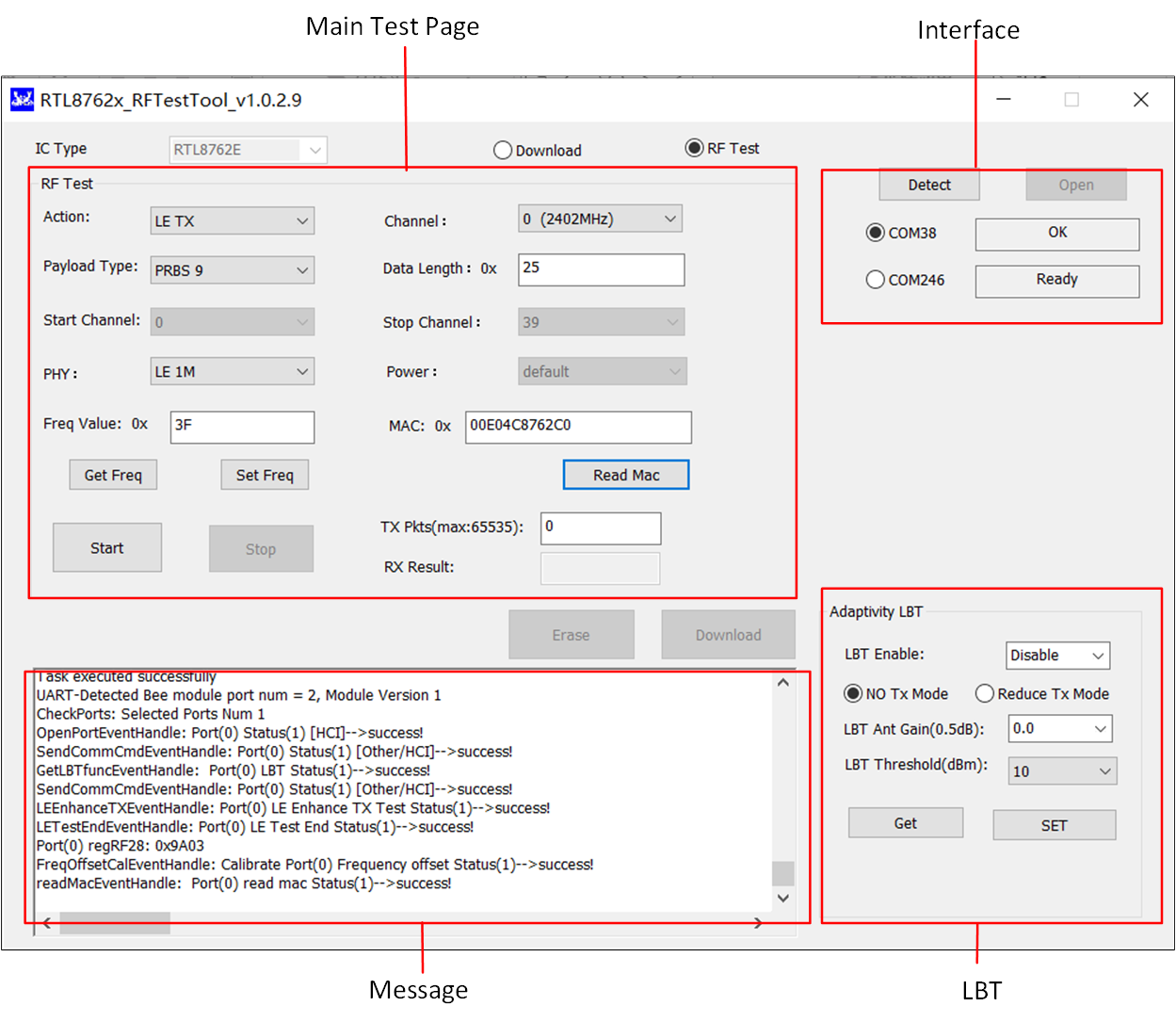
RTL8762x_RFTestTool Main Page
Check the serial port number in Device Manager, the Baud rate is 115200.
Select 'IC Type', click the Detect button to detect the serial ports, select the serial port number and click Open. When 'OK' is displayed, it means the device has been successfully opened.
Main test items, and the descriptions as follows.
Item |
Description |
|---|---|
Frequency offset adjustment. |
|
BLE TX test. |
|
Transmit duty cycle 100% of BLE modulation RF signal. |
|
BLE RX test. |
|
Transmit single carrier signal. |
|
Used for some laboratory certification tests, such as FCC, CE, KC, BQB, etc. |
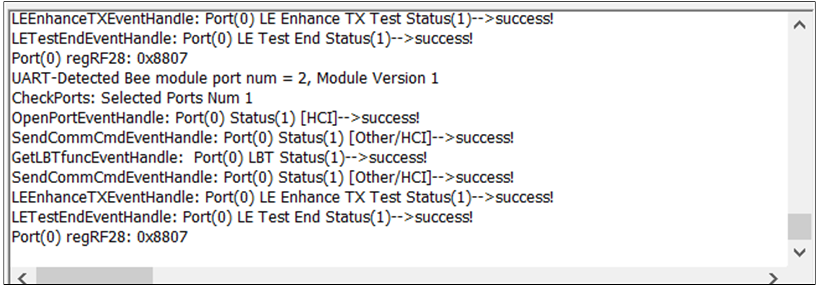
This is for the CE/SRRC certification testing. Users can set LBT related parameters to detect the device's interference avoidance function. The CE specification only needs to be supported when EIRP > 10 dBm. If LBT is turned on, the device will stop sending packets after interference is detected (please select this mode during certification).
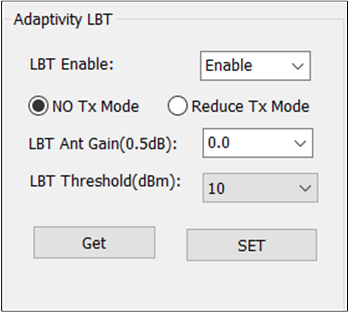
LBT Function
Parameter |
Description |
|---|---|
LBT Enable |
Enable LBT function or not. |
No Tx Mode |
If LBT is enabled, the device will stop TX. |
Reduce Tx Mode |
If LBT is enabled, the device will reduce Tx power during transmission, and it's just an option for users. |
LBT AntGain |
Gain value of the antenna. |
LBT Threshold |
Used to set the threshold for LBT enablement. LBT will be triggered only when target power + gain > threshold. |
Signaling (Link) Test Mode
DUT and instrument (such as 8852B) are connected via serial port for DTM testing, and two methods are supported:
HCI interface, just need to ensure the DUT is in [MP Mode].
2-wire UART interface, this mode needs to download the test app and in [Normal Mode].
The connection environment diagram is as follows:
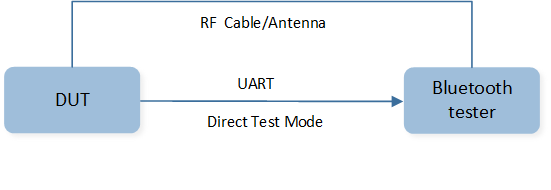
BLE Signaling (Link) Test Hardware Environment
Non-Signaling (Link) Test Mode
In Non-Signaling mode, bluetooth does not need to be connected. The device can transmit and receive in this mode. Use a Non-Signaling instrument such as IQXel to test the Bluetooth RF performance. This chapter will explain how to use RTL8762x_RFTestTool to control the DUT for receiving and transmitting with the instrument.
Frequency Offset Calibration
Before writing the proper XTAL to flash, users should tune it. The adjustment steps are as follows:
Select new 'Freq Value'.
Click Set Freq button.
Then use the instrument to measure the frequency offset.
Repeat the above steps until the measured frequency offset is within the measurement range.
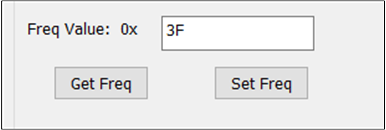
Setting Crystal Cap Value
During adjustment the XTAL value, users can transmit a Single Tone signal. After the adjustment is completed, configure the XTAL value to the Config file and then burn it.
LE TX Test
Use BLE standard HCI command, usually for testing Output power, Modulation Characteristics, Carrier frequency offset and drift, etc. The steps are as below:
Select 'LE TX'.
Select 'Channel'.
Select 'Payload Type', such as PRBS9.
Set 'Data Length', such as 0x25.
Select 'PHY', such as LE 1M.
Click the Start button and start to test.
After testing, click the Stop button.
Parameter |
Value |
|---|---|
Channel |
0~39. |
Data Length |
0~255, Default: 37. |
Payload Type |
PRBS9, 11110000, 10101010, PRBS15, All 1, All 0, 00001111, 01010101. |
PHY |
LE1M, LE2M, LRS8, LRS2. |
TX Pkts (max: 65535) |
Set the number of packets to be sent, it depends on the chip support, and the 'Data Length' needs to be set to less than 37. 0: infinity, 'Data Length' setting is not limited. |
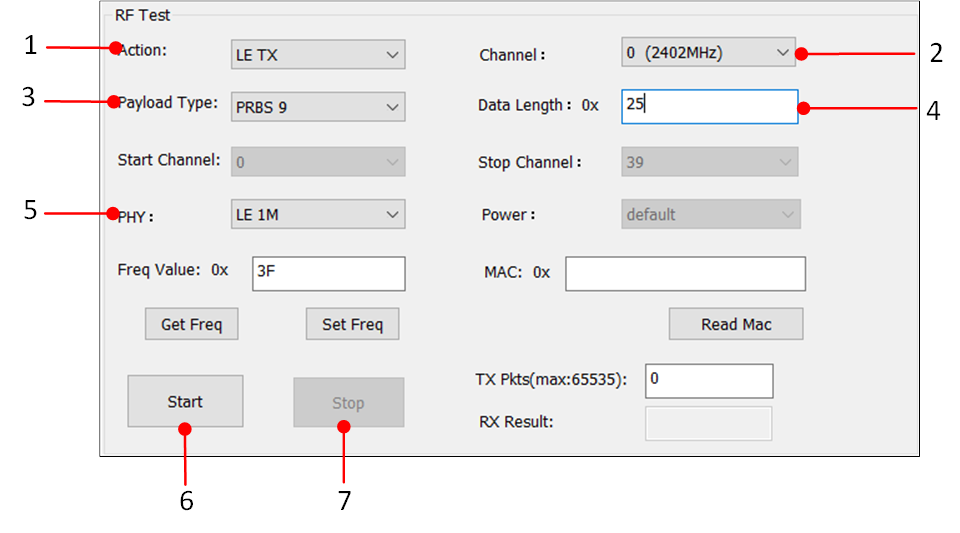
BLE TX Test
LE Cont TX
The duty cycle for this test is 100%, which is used for certain laboratory certification tests, the steps are as below.
Select 'LE Cont TX'.
Select 'Channel'.
Select 'PHY', such as: LE 1M.
Click the Start button and start to test.
After testing, click Stop button.
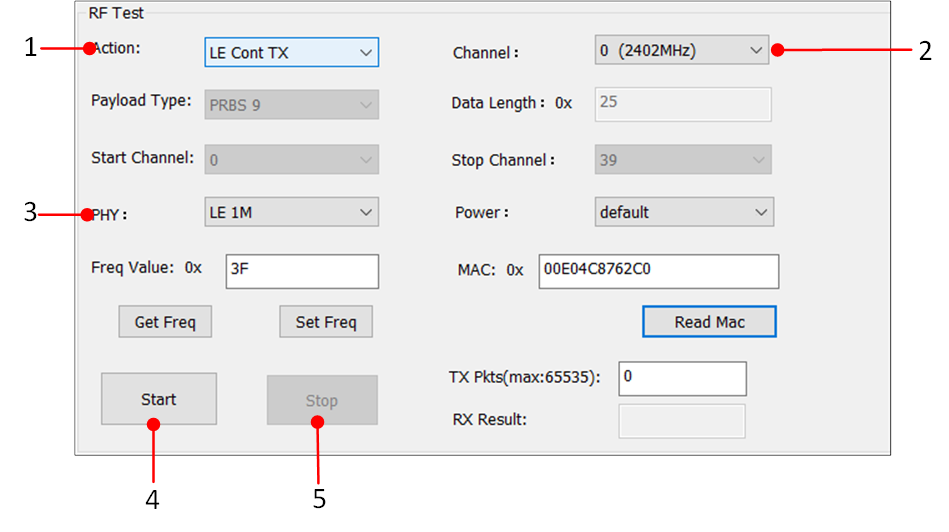
BLE Cont TX Test
LE RX Test
BLE receiving test, usually used to test the PER, the steps are as below.
Select 'LE RX'.
Select 'Channel'.
Select 'PHY', such as: LE 1M.
Click the Start button to start receiving.
After testing, click the Stop button.
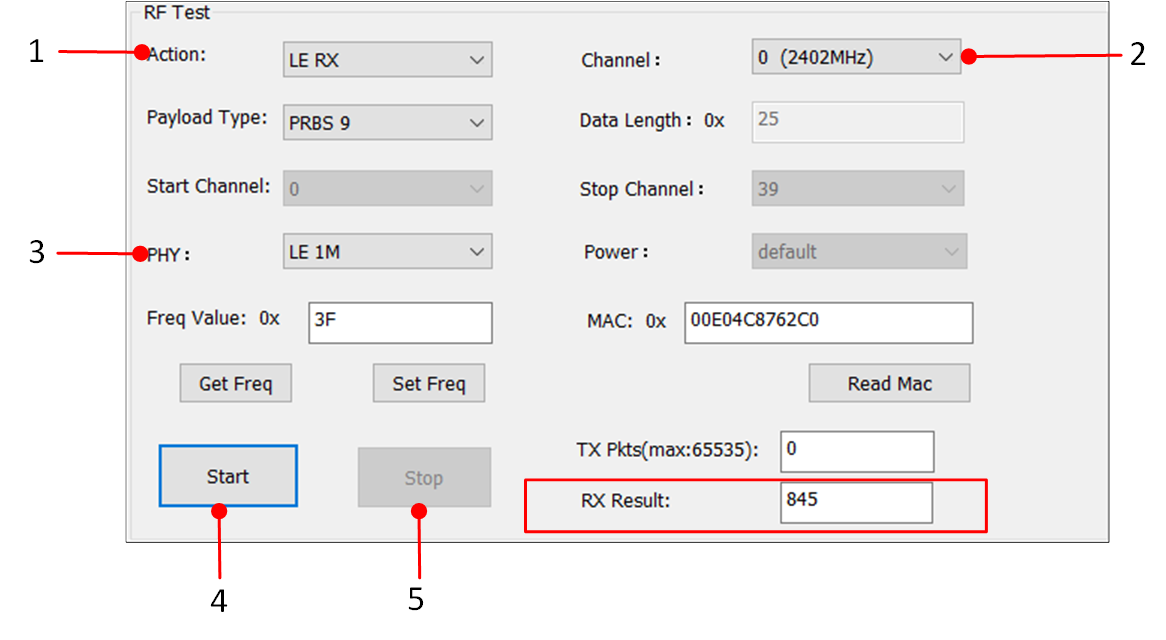
BLE RX Test
Note
After clicking the Stop, the result will be displayed in the red box of BLE RX Test, RX Result will show the Received Packets. Users can calculate PER based on the number of received packets.
Single Tone
This function transmits a single-carrier signal, and can be used for frequency offset calibration. the steps are as below.
Select 'Single Tone'.
Select 'Channel'.
Select 'Power', usually select default.
Click Start and start to test.
After testing, click Stop button.
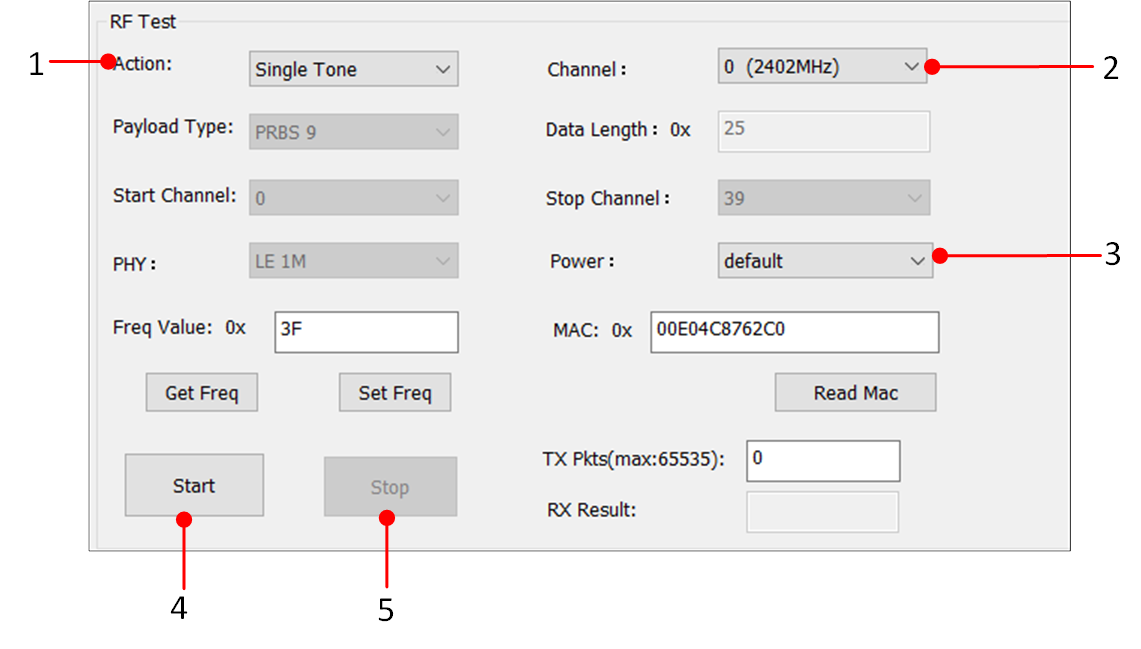
Single Tone Test
Hopping
Hopping test is used for some laboratory certifications such as FCC, CE, KC, BQB..., used to test 'Dwell time' and 'Band Edge'. the steps are as below.
Select 'Hopping'.
Select 'Start Channel'.
Select 'Stop Channel'. It's best to have a difference of 20 channels between 'Start Channel' and 'Stop Channel'.
Click Start and start to test.
After testing, click Stop button.
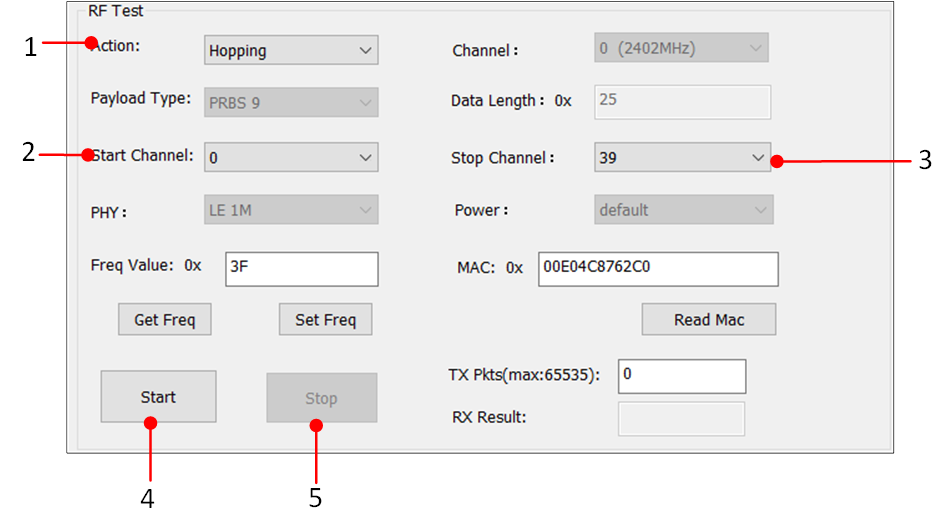
Hopping Test
Frequently Asked Questions
If failed to open the serial port. Please confirm whether the RF test patch is burned, as shown below:
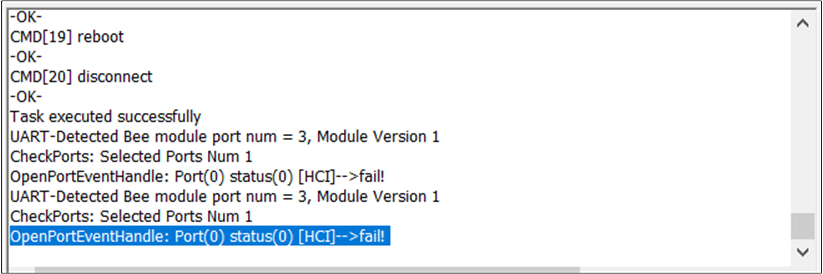
Open Error Messages
Note
Contact Realtek Bluetooth FAE if any problem arises in the use of the test.