DSP Online Debug User Guide
DSP online debugging function allows dynamic adjustment of audio parameters in three scenarios: call, local playback, and A2DP Sink playback. The adjustment effects are fed back in real-time, providing a 'what you hear is what you get' experience, which makes it easy to adjust to suitable audio parameters. The DSP online debugging based on SDK can follow these steps:
-
Prepare firmware that supports online debugging.
If the APP needs to include the online debugging function, you should enable the global macro
F_APP_DSP_ONLINE_DEBUG_SUPPORTbefore compiling. This macro has two functions:
Supports simultaneous connection of firmware to PC and mobile phone.
Add online debugging instructions.
Since online debugging uses SPP to transmit audio parameters, ensure that the SPP protocol is supported in the McuConfig Tool.
Download the firmware that supports online debugging to EVB, and run the firmware.
If adjusting the audio effects of call or A2DP Sink playback, ensure the EVB is first connected to the Bluetooth of the audio source (mobile phone) and confirm that the EVB can work normally with the mobile phone (i.e., can make calls or play music normally); if adjusting the audio effects of local playback, ensure that the local playback function is normal.
Open DSPConfigTool.exe on your PC, search for the EVB's Bluetooth in Windows settings and connect. Once the PC is successfully connected, follow the steps in the diagram to operate the tool, and the tool will then prompt whether the connection to the EVB was successful.
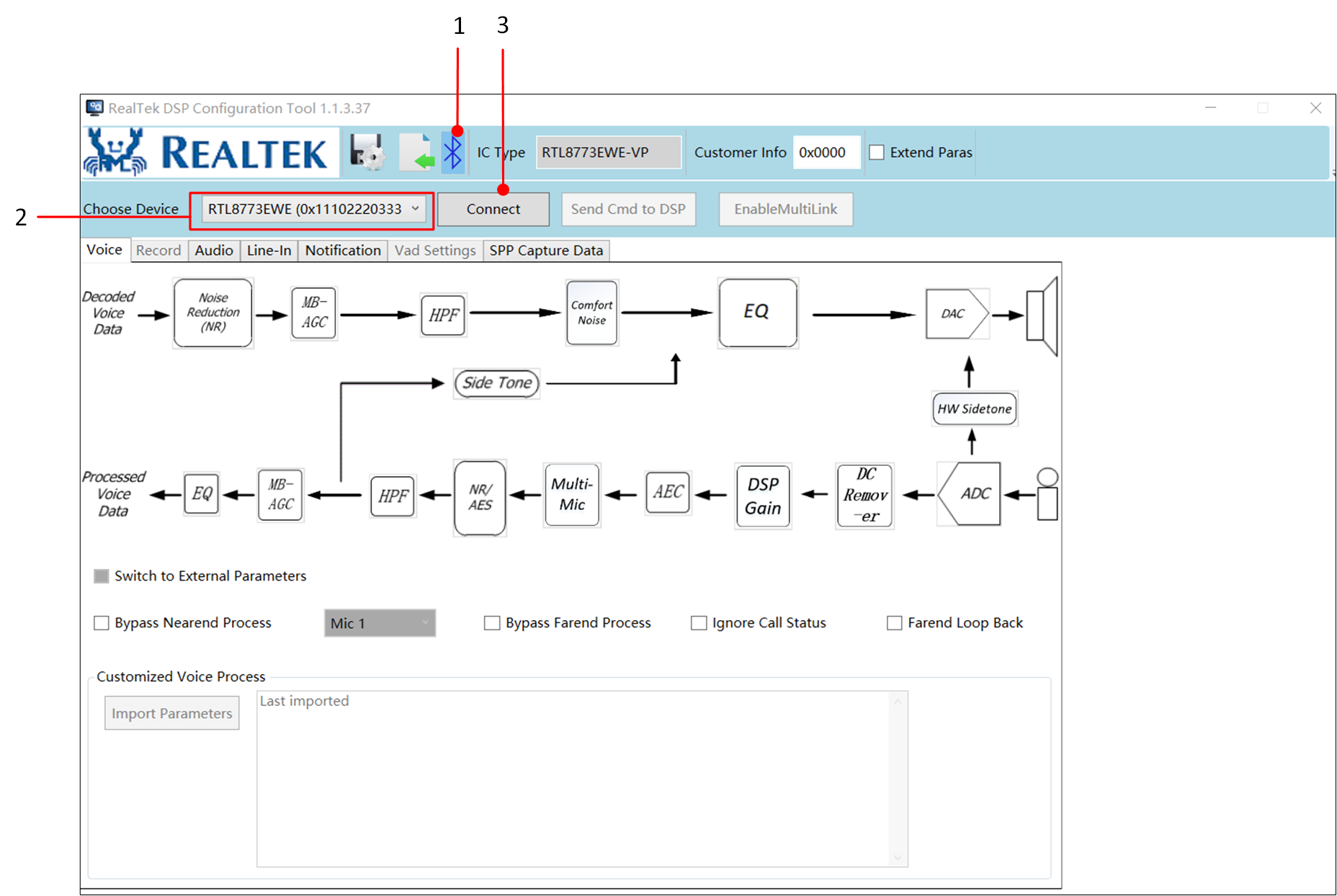
Connect EVB
Adjust the call effect under the Voice tab of the tool. Adjust the effect of local playback and A2DP Sink playback under the Audio tab. Ensure that the DSP is running (during a call or playback), otherwise sending commands will result in an error. After adjusting the parameters, click Send Cmd to DSP to send the parameters to the EVB, and the EVB will immediately activate the new audio parameters.
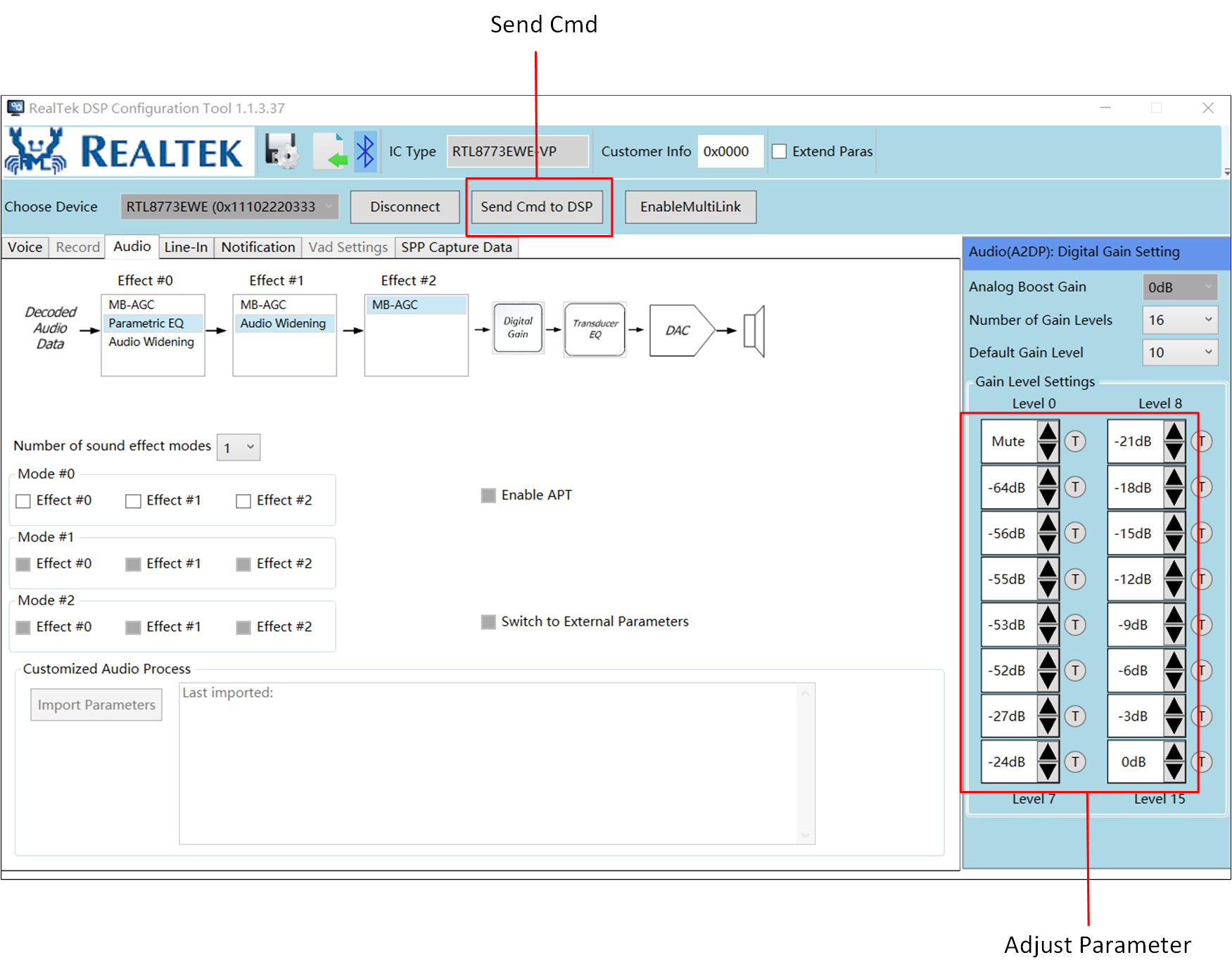
Adjust Parameters and Send
Repeatedly adjust the audio parameters until achieving satisfactory results. Click Save Config on the tool to save the parameters to
dsp_config.bin.
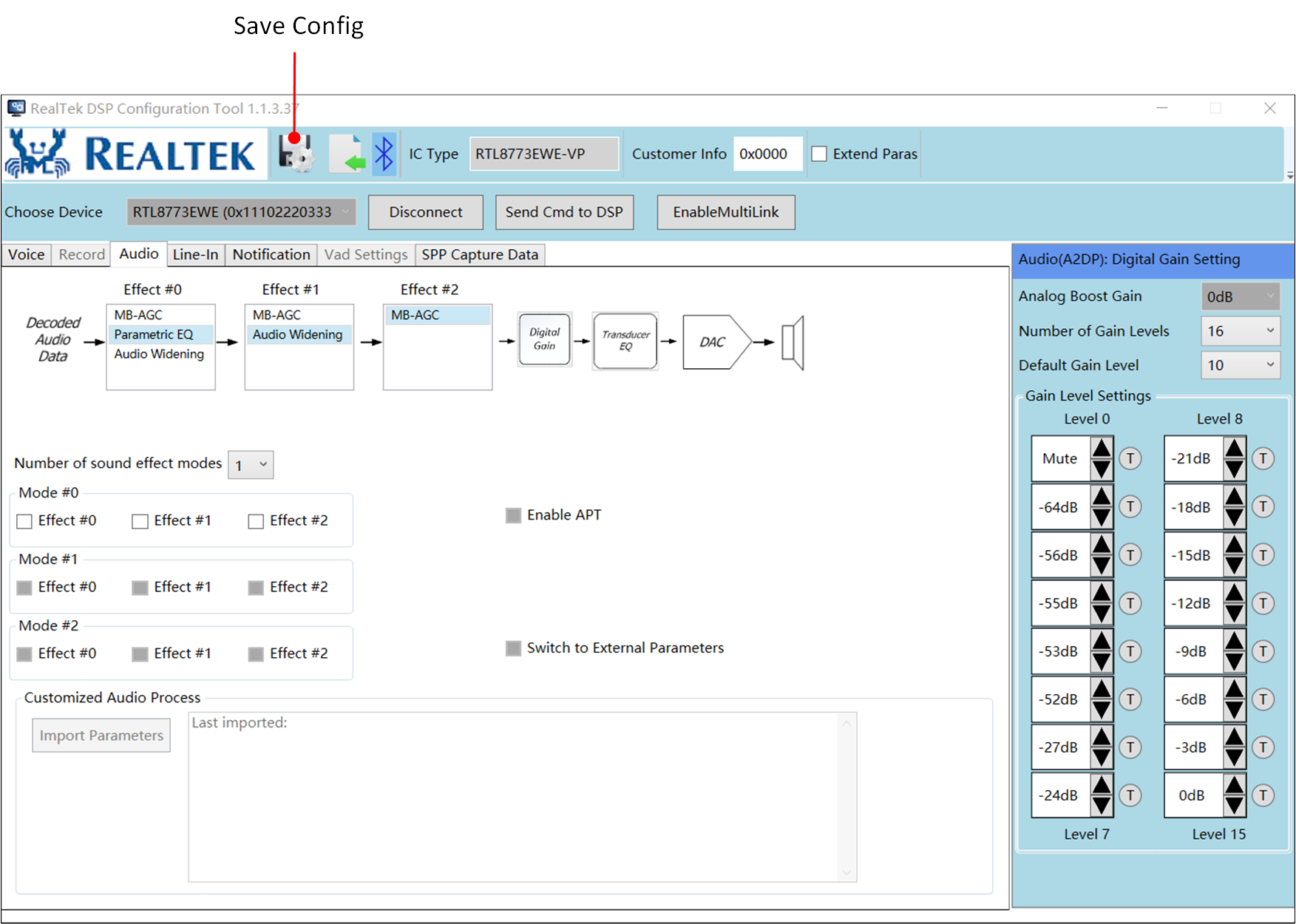
Save Configuration
For more online debugging features, please refer to the DSP Config Tool documentation.
Note
If the EVB is connected to two Bluetooth devices simultaneously during online debugging, ensure that it is first connected to the audio source device and then to the DSP Config Tool, otherwise, the PC may preempt the audio source device protocol.